
How To Use AI Apps On iPhone For Daily Tasks
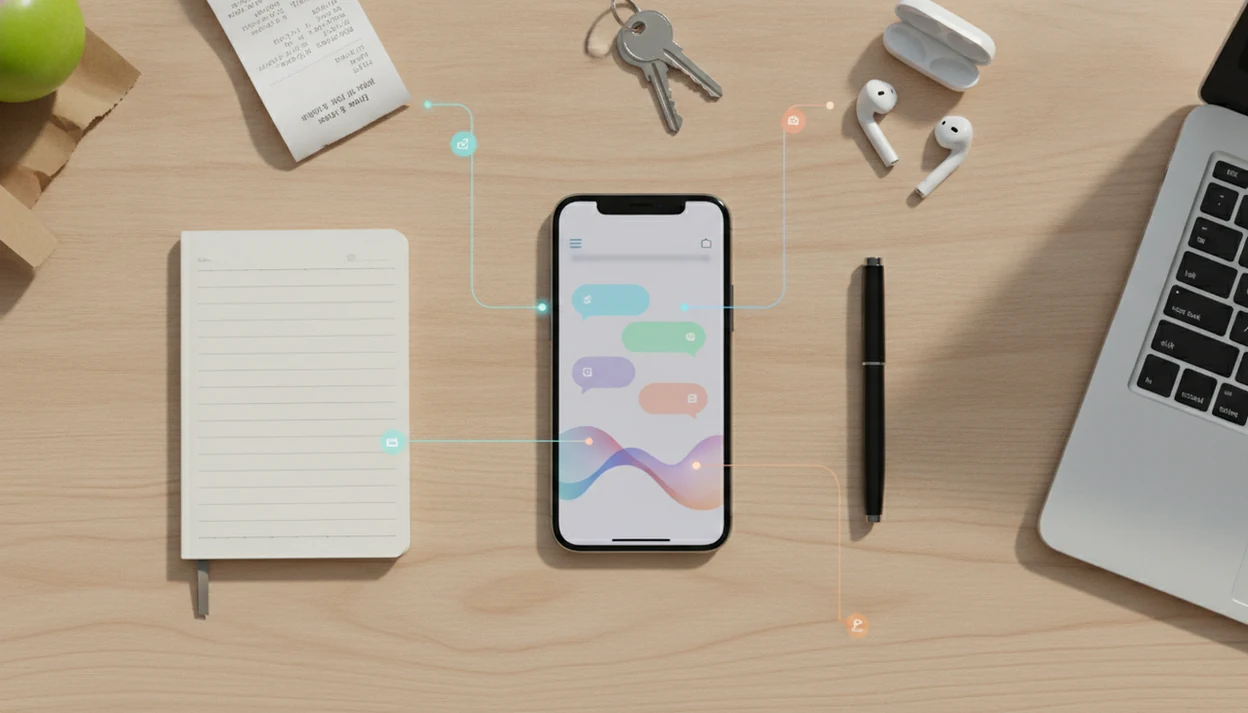
The fastest way to learn how to use AI apps on iPhone is to install a trusted AI assistant, enable it in the iOS Share Sheet, and use voice, photos, documents, and shortcuts to send everyday tasks to it. Start with low-risk tasks like summarizing notes, rewriting messages, planning errands, and extracting action items before using AI for sensitive work.
Using AI apps on iPhone means using standalone AI assistants, built-in Apple Intelligence features, and AI tools inside everyday apps to summarize, write, analyze, translate, plan, and automate tasks from your phone.
- Use AI on iPhone through apps like ChatGPT and Perplexity, built-in Apple Intelligence, or AI features inside Notes, Mail, Photos, and task apps.
- The best iPhone AI setup uses the Share Sheet, voice dictation, Shortcuts, and the Action button so you can send text, photos, PDFs, and web pages to AI quickly.
- Check privacy, model settings, upload behavior, and subscription limits before sending sensitive documents, personal data, or work files to any cloud AI app.
What AI On iPhone Means For Daily Tasks
AI on iPhone means three practical things: standalone AI apps, Apple Intelligence features, and AI tools already built into apps you use every day. Standalone apps include ChatGPT, Perplexity, Claude, and similar assistants. Apple Intelligence works inside supported iPhones and native apps. Embedded AI may appear inside a notes app, email app, photo editor, or task manager.
In daily use, that looks ordinary. You rewrite a too-long text, summarize an article from Safari, plan dinners from a grocery list, translate a sign, or turn scattered notes into headings. I usually test this with a spare Gmail account first, before connecting work files.
Per Pew Research Center’s 2024 mobile fact sheet, 90% of U.S. adults own a smartphone (Pew Research AI survey). CIRP reported that iPhone represented about 57% of U.S. smartphone sales in early 2023; add the exact CIRP report URL here or remove this sales-share sentence if you cannot source it. Tools like New AI Blog explain AI apps, agents, automation tools, and practical guides for non-developers evaluating AI software, not hype about “AI replacing everything.”
iPhone AI App Requirements Before You Start
Before you use AI on iPhone, check the basics: device support, iOS version, app permissions, storage, and subscription limits. A five-minute setup check prevents most annoying failures later.
- Updated iOS: Install the latest iOS your phone supports, especially if you want Apple Intelligence or newer Share Sheet behavior.
- Compatible device: Apple Intelligence depends on supported iPhone models and current iOS versions, so older phones may only run third-party apps.
- App Store and account: Download trusted apps from the App Store, then create the AI account with an email you’re comfortable using.
- Permission control: Grant microphone, camera, photos, files, and notifications only when the task needs them.
- Cost and privacy check: Many cloud AI apps have free plan limits, paid models, and chat history controls buried near the small settings gear.
That gray pricing toggle matters. It often switches monthly pricing to annual billing without much visual drama.
How AI Apps On iPhone Work Behind The Scenes
AI apps on iPhone work by taking your input, sending it to a model, and returning a predicted answer or action. The input can be typed text, voice, an image, a file, a screenshot, or a web page shared from Safari.
The processing can happen on your device or in the cloud. On-device processing keeps more work on the iPhone. Cloud processing sends prompts, files, images, and related metadata to remote servers for analysis. Apple says Apple Intelligence is designed with on-device processing as the default, and Private Cloud Compute is used only when a request needs more capacity. Apple also says that data sent through Private Cloud Compute is not used to train Apple models. Apple explains this privacy model in its Apple Intelligence privacy documentation (Support reference) and its Private Cloud Compute security overview (Security reference).
Models do not “know” in the human sense. They predict useful responses from patterns in data, instructions, and your prompt. That is why a neat answer can still misread a PDF chapter, invent a deadline, or miss the point of a photo.
Check the source document.
How To Use AI Apps On iPhone In 6 Steps
To use AI apps on iPhone well, set up one reliable assistant first, then connect it to iOS sharing, voice, and review habits. For most users, one carefully configured AI assistant is easier than five scattered apps because the workflow becomes repeatable.
1. Install one or two trusted apps such as ChatGPT or Perplexity from the App Store, or compare AI apps for iPhone before choosing. 2. Set permissions only where needed for microphone, photos, camera, files, notifications, and privacy access. 3. Add the AI app to the iOS Share Sheet so screenshots, PDFs, articles, and selected text can be sent quickly. 4. Create a Shortcut or Action button workflow for starting a voice conversation or opening a saved prompt. For Apple’s own setup references, see its iPhone sharing guide (Support reference) and Shortcuts user guide (Support reference). 5. Test daily prompts for notes, emails, documents, photos, errands, and meeting summaries. 6. Review the answer before using it and save checked outputs into Notes, Reminders, Mail, Calendar, or your task app.
I like testing with “Q3 campaign notes.docx” before sending anything that names clients.
Best Daily Workflows To Use ChatGPT On iPhone
The strongest iPhone AI workflows are small, repeatable, and easy to check. Use ChatGPT on iPhone, or a similar assistant, for tasks where drafting and organizing matter more than perfect factual authority.
- Voice notes: Dictate a messy thought, then ask AI to turn it into a checklist, email, outline, or plan. This works well after a walk, when the idea is still half-formed.
- Document summaries: Share or upload a PDF, contract draft, lecture file, or memo and ask for a summary, action items, and unanswered questions.
- Photo questions: Ask about a whiteboard, receipt, product label, sign, or handwritten note, but avoid sensitive images unless you’ve checked the policy.
- Meeting prep: Paste rough notes and ask for decisions, owners, deadlines, and a follow-up draft.
- Message rewriting: Turn a blunt text into a calmer version before sending.
For meeting-heavy days, a dedicated download AI meeting notes app guide can help separate transcription tools from general chat apps.
Apple Intelligence Versus Cloud AI Apps On iPhone
Apple Intelligence and cloud AI apps solve different iPhone problems. Apple Intelligence is built into supported native experiences, while cloud AI apps are often broader for research, file analysis, voice chat, and cross-platform work.
| Category | Apple Intelligence | Cloud AI apps |
|---|---|---|
| Availability | Limited to supported iPhones and iOS versions | Usually available through App Store apps |
| Privacy model | Designed for on-device processing by default, per Apple | Often sends prompts and files to remote servers |
| Best use cases | Writing help, summaries, Siri help, native app actions | Broad questions, web research, uploads, voice chat |
| File handling | Tied to supported Apple features and apps | Often more flexible with PDFs, images, and links |
| Cost | Included when available | Free tiers plus paid plans are common |
| Limitations | Device and region limits may apply | Privacy, pricing, and accuracy vary by app |
Neither option should be trusted blindly for medical, legal, financial, or safety-critical advice. If you’re comparing broader mobile AI apps, read the pricing and privacy pages together.
Common iPhone AI App Mistakes To Avoid
Installing ChatGPT alone is not the same as building a useful iPhone AI workflow. The real gain comes from the Share Sheet, Shortcuts, saved prompts, and a habit of reviewing outputs before you send them.
The biggest privacy mistake is uploading sensitive material without checking settings. Don’t send passwords, private work files, medical records, financial statements, school submissions, or confidential customer data until you understand storage, training controls, and deletion options. I’ve seen privacy policy text zoomed so tiny that the export and training settings were easy to miss.
Accuracy is the other trap. AI can sound confident on current facts, calculations, health, law, and finance. Verify before relying on it.
Also watch for battery drain, notification overload, duplicate subscriptions, and app sprawl. Start with two low-risk tasks you repeat weekly. Save the prompts that work.
How To Verify AI App Results On iPhone
How do you verify AI app results on iPhone? Ask for sources, compare the answer against the original file, check dates, test calculations, and read the final output before you send or save it.
Use Safari for current facts, official apps for account details, saved documents for internal context, and trusted sites for health, legal, financial, or safety information. If the AI summarized a PDF, reopen the PDF and spot-check the paragraphs it claims to use. For numbers, run the calculation separately in Calculator or a spreadsheet app.
Pew Research Center reported in 2024 that 23% of U.S. adults had used ChatGPT, up from 18% in 2023 (Pew Research AI survey). That makes verification a normal digital habit, not a specialist skill. Treat AI as a draft partner, not an authority. After review, save useful outputs into Notes, Reminders, Calendar, Mail, or your task app.
For writing-heavy checks, compare general assistants with a focused download AI writing app workflow.
Understanding Results
AI apps on iPhone can speed up daily tasks, but their answers, privacy settings, and upload behavior still need review. Start with low-risk automation, then evaluate which AI tools deserve access to your notes, photos, files, and accounts.
This guide works best when
- Summarizing articles, notes, emails, and PDFs from the iOS Share Sheet
- Rewriting texts, emails, captions, and reminders before you send them
- Using voice, photos, and dictation for quick planning, translation, and errands
- Building simple Shortcuts for repeat tasks like logging ideas or extracting action items
- Comparing AI apps before paying for subscriptions or connecting work files
This guide may be less accurate when
- Handling private health, legal, financial, school, or workplace decisions without human review
- Protecting sensitive data if prompts, images, files, or metadata are sent to cloud AI tools
- Giving reliable answers when the source is outdated, vague, biased, or missing context
- Working smoothly on older iPhones that lack Apple Intelligence or have slower performance
- Avoiding battery drain, mobile data use, notification clutter, and overlapping subscriptions
Read more
FAQ
Can iPhone use AI apps?
Yes. iPhones can use AI through App Store apps, built-in Apple Intelligence features on supported devices, and AI tools inside existing apps like notes, mail, photos, and task managers.
How do I use ChatGPT on iPhone?
Install ChatGPT from the App Store, sign in, allow only the permissions you need, and use text, voice, images, or shared files. Add it to the Share Sheet for faster use with web pages, screenshots, and PDFs.
Does iPhone have built-in AI?
Yes, supported iPhones can use Apple Intelligence features built into iOS and Apple apps. Some older iPhone models do not support every Apple Intelligence feature.
Which iPhones support Apple Intelligence?
Apple Intelligence support depends on the iPhone model, iOS version, language, and region. Check Apple’s current compatibility list before assuming your device supports it.
Are iPhone AI apps private?
Apple Intelligence is designed with on-device processing by default where possible, while many third-party AI apps use cloud processing. Check privacy labels, chat history controls, training settings, and deletion options.
Can AI summarize iPhone photos?
Yes, many AI apps can analyze uploaded photos or screenshots and summarize visible text or objects. Avoid uploading sensitive images unless you understand the app’s privacy and retention rules.
Can Siri use ChatGPT?
On supported devices and settings, Siri and Apple Intelligence integrations may offer access to ChatGPT for some requests. Availability depends on iPhone model, iOS version, and enabled settings.
Are free AI apps enough?
Free AI app tiers are enough for basic questions, short rewrites, simple summaries, and light testing. They may limit models, uploads, speed, voice tools, image features, or daily usage.